What to Do When Paper Is Jammed
If paper jams, remove it following the appropriate procedure as shown below.
 Note
Note
- If the paper is not jammed (no support code displayed) but the paper is not fed or output normally, see What to Do If Paper Is Not Fed/Output Normally.
- If the paper loaded in the top feed is jammed:
- If the paper loaded in the manual feed tray is jammed:
- If the paper is jammed inside the printer:
- If the small size paper is jammed inside the printer:
If the paper loaded in the top feed is jammed:
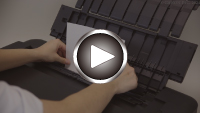
- Watch the movie (If the jammed paper is visible from the top feed)
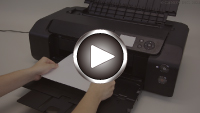
- Watch the movie (If the jammed paper is visible from the paper output slot)
-
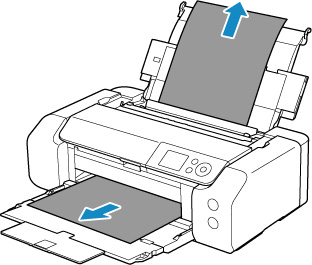
Slowly pull out paper, either from paper output slot or from top feed, whichever is easier.
Hold the paper with your hands and pull the paper out slowly not to tear it.
 Note
Note-
If you cannot pull out the paper, turn the printer back on. The paper may be ejected automatically.
-
If paper becomes jammed during printing and you need to turn off the printer to remove it, press the Stop button to stop the printing before you turn off the printer.
-
If the paper tears and you cannot remove the jammed paper from the paper output slot or the top feed, remove the paper from inside the printer.
-
-
Reload paper and press printer's OK button.
The printer resumes printing. Reprint the page you were printing if it was not printed properly due to the paper jam.
If you turned off the printer in step 1, the print data that was sent to the printer is erased. Redo the printing.
Note-
When reloading the paper, make sure you are using suitable paper and loading it correctly.
-
We recommend using paper sizes other than A5 to print documents with photos or graphics. A5 paper may curl and jam as it leaves the printer.
-
If the measures above do not solve the problem, contact your Canon dealer for assistance.
If the paper loaded in the manual feed tray is jammed:
- Watch the movie (If the jammed paper is visible from the manual feed tray)
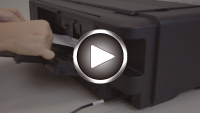
- Watch the movie (If the jammed paper is visible from the paper output slot)
-
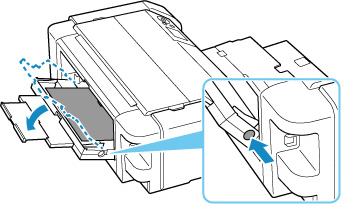
Press Paper Jam Clearing button and set manual feed tray to paper jam clearing position.
-
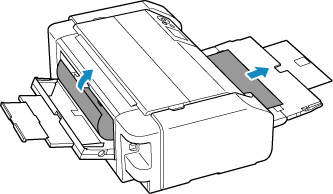
Slowly pull out paper, either from paper output slot or from manual feed tray, whichever is easier.
Hold the paper with your hands and pull the paper out slowly not to tear it.
 Note
Note-
If you cannot pull out the paper, turn the printer back on. The paper may be ejected automatically.
-
If paper becomes jammed during printing and you need to turn off the printer to remove it, press the Stop button to stop the printing before you turn off the printer.
-
If the paper tears and you cannot remove the jammed paper from the paper output slot or the manual feed tray, remove the paper from inside the printer.
-
-
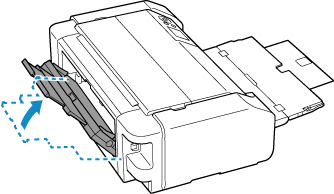
Return manual feed tray to original position.
-
Reload paper and press printer's OK button.
The printer resumes printing. Reprint the page you were printing if it was not printed properly due to the paper jam.
If you turned off the printer in step 2, the print data that was sent to the printer is erased. Redo the printing.
Note-
When reloading the paper, make sure you are using suitable paper and loading it correctly.
-
If the measures above do not solve the problem, contact your Canon dealer for assistance.
If the paper is jammed inside the printer:
- Watch the movie (If the paper is jammed inside)
If the jammed paper tears and you cannot remove the paper either from the paper output slot, from the top feed, or from the manual feed tray, or if the jammed paper remains inside the printer, remove the paper following the instructions below.
Note
-
If paper becomes jammed during printing and you need to turn off the printer to remove it, press the Stop button to stop the printing before you turn off the printer.
-
Turn off printer and unplug it.
-
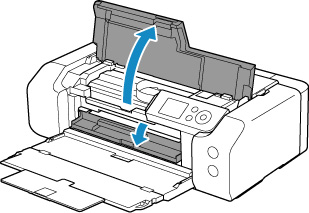
Open top cover and multi-purpose tray guide.
 Important
-
Do not touch clear film (A) or white belt (B).
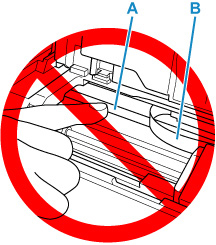
If you soil or scratch these parts by touching them with paper or your hand, it could damage the printer.
-
-
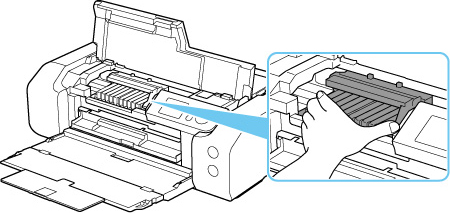
Check if jammed paper is under print head holder.
If the jammed paper is under the print head holder, move the print head holder to the far right or left, whichever makes it easier to remove the paper.
When moving the print head holder, hold the top of the print head holder and slide it slowly to the far right or left.
-
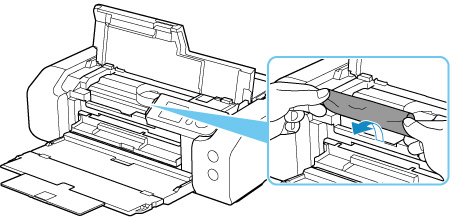
Hold jammed paper firmly in both hands.
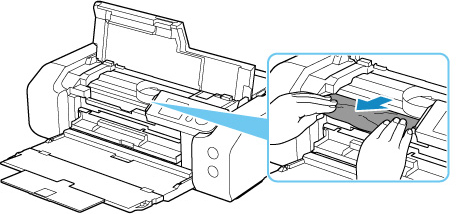
If the paper is rolled up, pull out it.
-
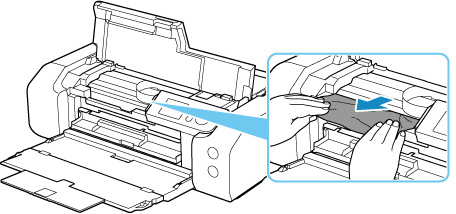
Slowly pull out paper, so as not to tear it.
Pull out the paper at an angle of about 45 degrees.
-
Make sure all jammed paper is removed.
If the paper tears when you pull out it, a bit of paper may remain in the printer. Check the following and remove any remaining paper.
-
Any paper left under the print head holder?
-
Any small bits of paper left in the printer?
-
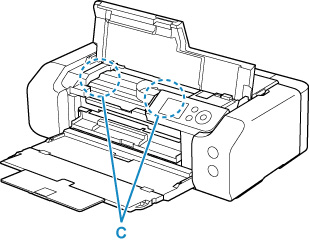
Any paper left in the left and right empty spaces (C) in the printer?
-
-
Close top cover and multi-purpose tray guide.
All jobs in the print queue are canceled. Redo the printing.
Note-
When reloading the paper, make sure you are using suitable paper and loading it correctly. If a paper jam message appears on the LCD or on your computer screen when you resume printing after removing all the jammed paper, there may be some paper still inside the printer. Check the printer again for any remaining bits of paper.
-
If the measures above do not solve the problem, contact your Canon dealer for assistance.
If the small size paper is jammed inside the printer:
Important
-
Do not load the small size paper such as 4"x6" 10x15cm size paper in the landscape orientation. It may cause a paper jam.

- You cannot print on paper smaller than the minimum size.
If the small size paper is jammed inside the printer, remove the paper following the instructions below.
-
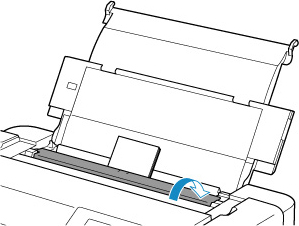
Load one sheet of paper larger than 4"x6" 10x15cm in top feed in portrait orientation.
Align the paper guides of the top feed with both edges of the paper.
Do not load the small size paper in the landscape orientation.
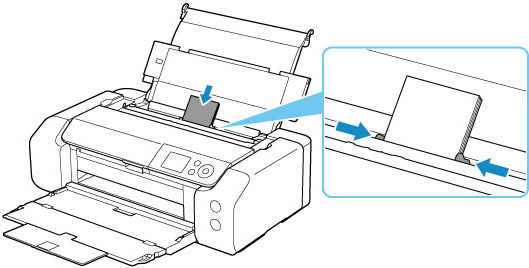
Close the feed slot cover.
-
Turn off the printer.
-
Turn on the printer.
The loaded paper is fed and ejected while pushing out the jammed paper.
If the jammed paper is not ejected even after taking the above measures, try the following procedure.
-
Perform paper feed roller cleaning of the manual feed tray.
The jammed paper is ejected together with the paper used for paper feed roller cleaning.
All jobs in the print queue are canceled. Redo the printing.
Note-
When reloading the paper, make sure you are using suitable paper and loading it correctly.
If a paper jam message appears on the printer's LCD or on your computer screen when you resume printing after removing all the jammed paper, there may be some paper still inside the printer. Check the printer again for any remaining bits of paper.
-
If the problem persists even after repeating the above measures, contact your Canon dealer for assistance.
